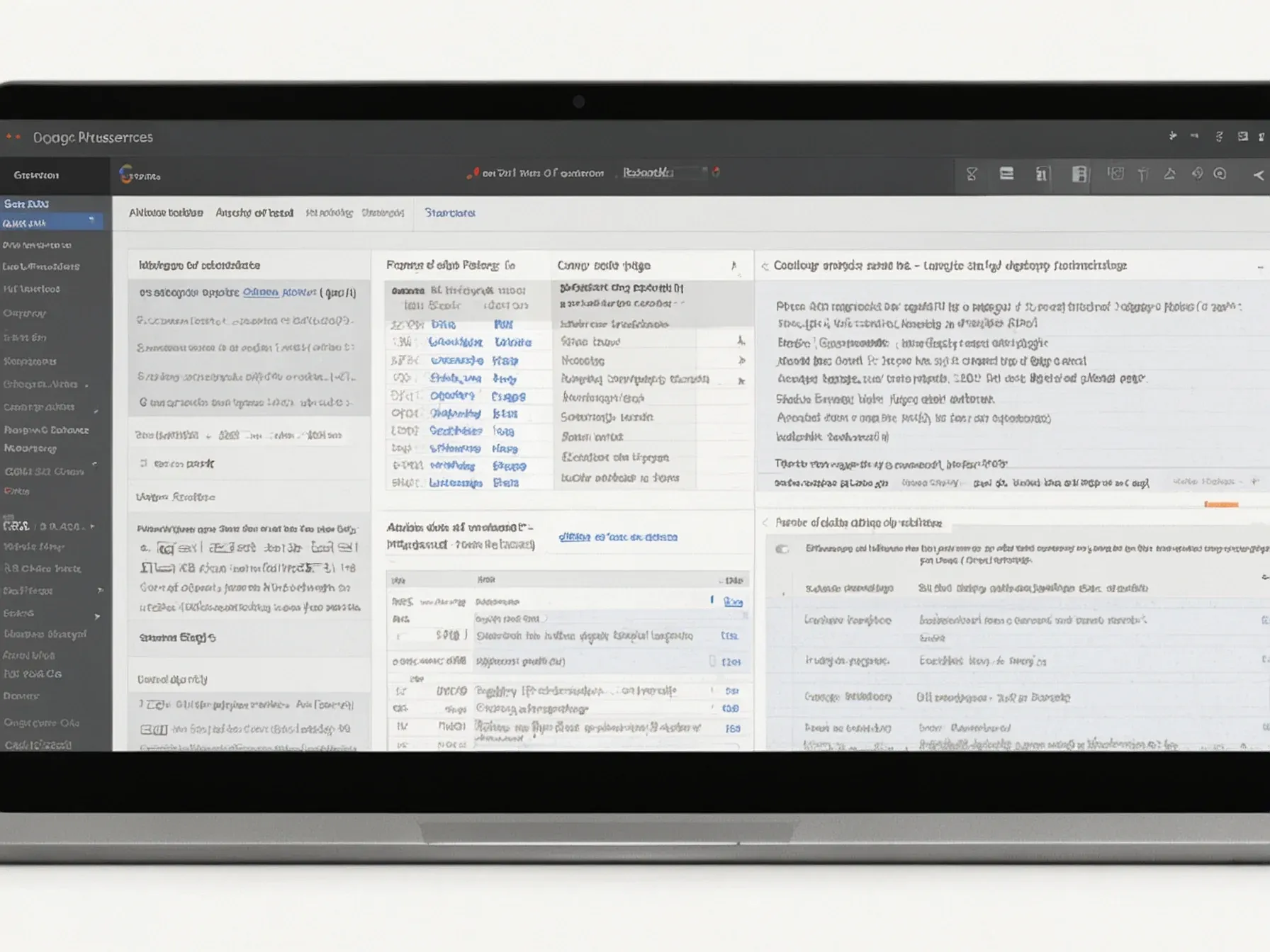
Editorial illustration for Google AI Studio Adds Detailed Logging for Tracing Model Interactions and Debugging
Google AI Studio Unveils Advanced Model Interaction Logging
Google AI Studio lets users trace inputs, outputs and API usage in logs
Building with AI often means blindly trusting a black box. You feed it a prompt, and you get a strange, inexplicable reply. Figuring out why is a professional nightmare.
Google’s latest move in AI Studio aims to fix that. It’s adding detailed logging, a feature so basic in traditional software it’s embarrassing it took this long. Developers can now trace every input, output, and API call. This turns debugging from mystical guesswork into a simple review of the evidence.
The problem is visibility. When an AI model fails, you usually have no data on why. The new logs provide that. They show the precise chain of events leading to any response, good or bad.
This is about control. Instead of hoping the model behaves, you can see exactly what it did and when. The logs can be exported for testing. It’s a fundamental shift from operating in the dark to having a flight recorder.
We’re introducing a new logs and datasets feature in Google AI Studio, to help developers assess the quality of AI outputs and build with more confidence.
For now, it’s a tool confined to Google’s own playground. The real test will be if this level of transparency becomes an expected standard, or remains a walled-garden feature used to lock developers in. Other platforms will need to answer.
It makes AI development slightly less of an art and a bit more of a science. Not revolutionary. Just accountable.
Further Reading
- Build with Gemini 3 Flash: frontier intelligence that scales ... - Google Blog
- Vertex AI release notes - Google Cloud Documentation
- Google AI Studio Pricing: Free Access, Usage Limits, API Costs, and Production Billing in Early 2026 - Data Studios
Related Reading
Browse all Google news → Research & Benchmarks
 Microsoft AI Chief: "If It Isn't Safe We Shouldn't Build It
 Research & Benchmarks
 Google's FACTS benchmark shows 70% factuality ceiling across four tests
 Research & Benchmarks
 Nvidia's DLSS 4.5 beta adds 6x Multi Frame Generation for RTX 50 GPUs
 Related Topic
 NVIDIA and Google Cloud let developers scale AI from prototype to production
Market Trends
 Related Topic
 Google tests visual 'magazine-style' UI for Gemini 3 Pro users
LLMs & Generative AI
 From Archives
 OpenAI unveils Aardvark, an agentic researcher that hunts bugs like a human
 From Archives
 Pinterest launches AI shopping assistant Thursday, suggesting looks
 From Archives
 Anthropic's deal backs Claude on Google TPUs, Amazon Trainium, Nvidia GPUs
Business & Startups
 From Archives
 Google plans Gemini 3 launch in 2025 as AI drives USD 100B revenue
Business & Startups
Common Questions Answered
How does Google AI Studio's new logging feature help developers debug AI applications?
The logging feature provides detailed visibility into model interactions by capturing comprehensive interaction histories across API calls. Developers can now trace specific log attributes like inputs, outputs, and API tool usage, allowing them to pinpoint exactly where and why unexpected results occur during AI model interactions.
What specific information can developers access through the new logging capabilities in Google AI Studio?
Developers can access detailed log attributes including model inputs, outputs, and API tool usage, which enables precise tracking of user interactions and model responses. By enabling logging, programmers can export interaction data and conduct forensic-level investigations into how their AI applications are performing.
Why is the new logging feature considered a significant improvement for AI application development?
The logging feature transforms debugging from a guesswork process to a precise investigative approach, giving developers unprecedented insight into model interactions. By allowing developers to trace exact moments of interaction and capture full API call histories, the tool helps identify and resolve issues more effectively than previous debugging methods.
Further Reading
- New tools in Google AI Studio to explore, debug and share logs — Google Blog
- Google AI Studio Adds Logs & Datasets for Better AI Debugging — TechBuzz
- Google AI Studio Review (2025) - Skywork.ai — Skywork.ai
- Google AI Studio 2025 Upgrade: Build Powerful AI Apps Instantly! — YouTube (Build With Nathan)