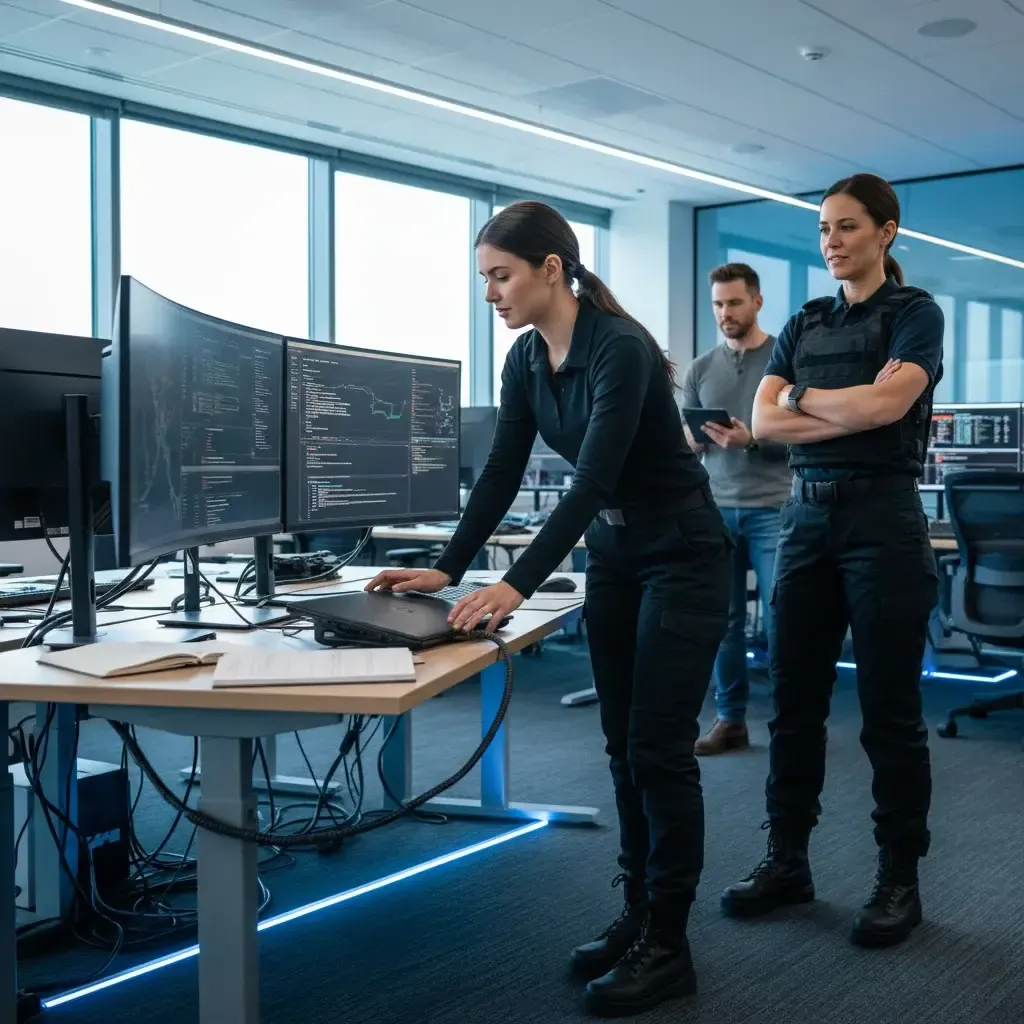
Editorial illustration for Reconfigure OpenClaw on Mac Mini to Deploy a Local LLM Model
Reconfigure OpenClaw on Mac Mini to Deploy a Local LLM Model
Your Mac Mini is a powerhouse. But it’s not enough to have a local LLM running, you need OpenClaw to see it, talk to it, and route your requests. That means reconfiguring the gateway.
A few lines of JSON, a restart, and a quick test transform your desktop into a private, low-latency inference engine. No cloud dependencies. No data leaving your machine.
Just raw, local intelligence. Here’s how to wire it up.
All we need to do now is reconfigure OpenClaw. Reconfigure OpenClaw to use the local model We now need to add this local model to our OpenClaw config so it's useable by our gateway. 1️⃣ Add to the "models" block in .openclaw/openclaw.json { "models": { "providers": { "local": { "baseUrl": "http://127.0.0.1:8080/v1", "apiKey": "sk-local", "api": "openai-completions", "models": [ { "id": "qwen3-9b", "name": "Qwen3.5 9B Local", "contextWindow": 64000, "maxTokens": 8192 } ] } /* REMOVE THIS COMMENT */ /* you may add additional providers, like anthropic here */ } } } Note: the settings for contextWindow andmaxTokens may need to be adjusted for your specific workflows You'll also need to set the default model for your agents "agents": { "defaults": { "model": { "primary": "local/qwen3-9b" }, "models": { "local/qwen3-9b": {} } } It's also helpful to verify the config is accurate, run this command below to check the syntax openclaw config validate 2️⃣ Restart the gateway, ensuring that the local model is now available openclaw gateway restart 3️⃣ Test to see if OpenClaw has properly registered our local model openclaw models list --provider local We can also run a simple inference call openclaw infer model run \ --model local/qwen3-9b \ --prompt "Reply with exactly: pong" \ --json You should receive a JSON object in return.
And just like that, your Mac Mini is no longer just a sleek desktop. It’s a reasoning engine. A private, local inference server humming quietly under your desk, ready to answer without a subscription, without a data leak, without a cloud dependency.
You’ve reconfigured OpenClaw to point at your own hardware. You’ve wired the gateway to trust a model that lives entirely inside your network. The JSON response you got back from that `pong` test wasn’t just a string, it was proof of sovereignty.
Every token generated from here on out is yours. No rate limits. No censorship.
No monthly bill. This is the real promise of local AI: not just privacy, but permanence. The model doesn’t vanish when a startup pivots.
It doesn’t change its behavior when a policy updates. It sits there, in your Mac Mini’s unified memory, waiting for your next prompt. You’ve done the hard part.
You’ve threaded the needle between open-source software and consumer hardware. Now the gateway is live, the model is registered, and the inference pipeline is yours to command. Go ahead, ask it something that matters.
Related Reading
 LLMs & Generative AI
 ChatGPT's 'Nerdy' tweak rewards goblin metaphors in answers, study finds
 LLMs & Generative AI
 Google tests visual 'magazine-style' UI for Gemini 3 Pro users
 LLMs & Generative AI
 AI Engineers Face Rising Costs, Need New Strategies for Efficiency
 From Archives
 Roadmap to LLM Engineer in 2026: Foundations, Prompting, Fine‑Tuning, Alignment
 From Archives
 Attention output GEMM reduces blended Fprop speedup to 1.47× in NVFP4 training
Common Questions Answered
What is the purpose of reconfiguring OpenClaw on a Mac Mini for local LLM deployment?
Reconfiguring OpenClaw allows you to route requests to a locally running LLM model on your Mac Mini, creating a private inference engine without cloud dependencies. This configuration enables low-latency processing while ensuring no data leaves your machine, providing complete data sovereignty and eliminating subscription costs.
What changes are required to configure the OpenClaw gateway for a local LLM model?
The reconfiguration involves modifying a few lines of JSON in the gateway settings to point OpenClaw to your local LLM model. After updating the JSON configuration and restarting the service, you can run a quick test to verify the gateway is properly communicating with your local model.
How does deploying a local LLM on Mac Mini with OpenClaw eliminate cloud dependencies?
By reconfiguring OpenClaw to trust and route requests to a model running entirely within your local network, you remove the need for cloud-based inference services. This setup keeps all data processing on your Mac Mini, eliminating external dependencies and ensuring your data never leaves your machine.
What does the `pong` test confirm when setting up OpenClaw for local LLM inference?
The `pong` test response from your reconfigured OpenClaw gateway confirms that the gateway is properly wired to communicate with your local LLM model. This JSON response serves as proof that your Mac Mini is functioning as a private, sovereign inference server ready to process requests independently.
Further Reading
- Running OpenClaw on a Mac Mini: The Practitioner's Guide (2026) — SFAI Labs
- Best Mac Mini for Running Local LLMs and OpenClaw — Starmorph
- Local models - OpenClaw docs — OpenClaw Docs
- How I Turned a Mac Mini Into a 24/7 AI Chief of Staff with OpenClaw — gOpenAI Blog
- HOWTO: Point OpenClaw at a local setup — Reddit